
Create a Simple Welcome Email Sequence
Savvy Recipe | Beginner | Approximately 45–75 minutes
What you'll make
A short series of automated emails that welcomes new subscribers, delivers what you promised and helps them take a useful next step. You'll create a campaign, write two to four emails, set the timing and connect the correct sign-up action so everything runs automatically.
SIGN-UP PAGE → THANK-YOU PAGE → CONTACT RECORDED → EMAIL SENT → RESOURCE DELIVERED
Before you start
Set up your sending email address in Start Here.
Decide where people are signing up (for example, your lead magnet funnel) and what they were promised.
Draft two to four short emails, with links and any resources ready.
If your entry point is a funnel, make sure its form is working before starting.
SAVVY NOTE
Your first email should match the reason someone signed up. If they downloaded a checklist, acknowledge that and deliver it before introducing anything else.
1. Decide who should receive the sequence
Choose one entry point, such as a lead magnet form or mailing-list sign-up. Write down what people just requested, what they already know and what they should receive first. Keep the emails relevant to that action, rather than sending a generic introduction.
2. Create your email campaign
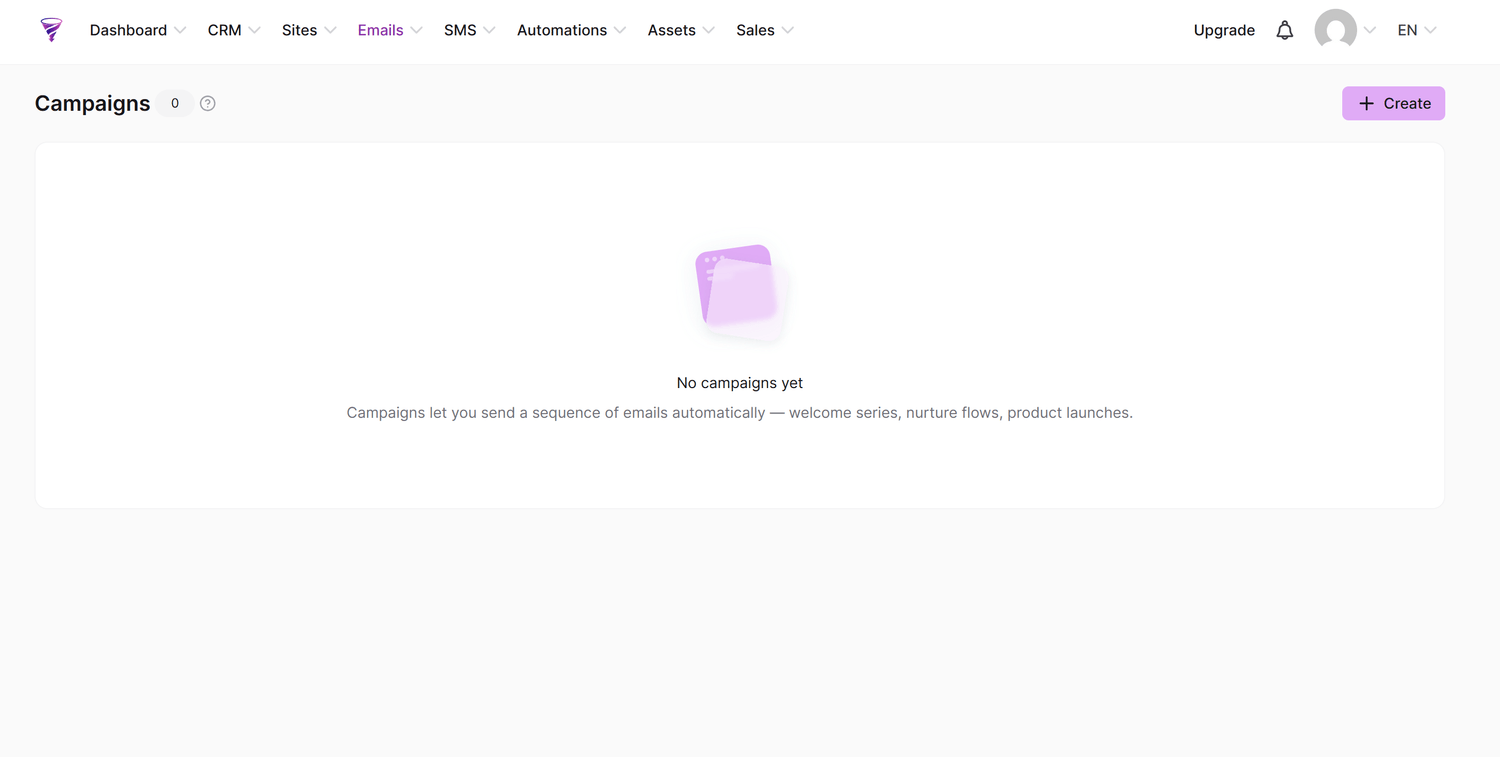
From your dashboard, open Emails > Campaigns. Choose Create, give the campaign a clear internal name such as Welcome | Main List or Welcome | Website Checklist, and save it. A campaign holds your emails and their timing, but creating it does not automatically subscribe anyone.
3. Create your first welcome email
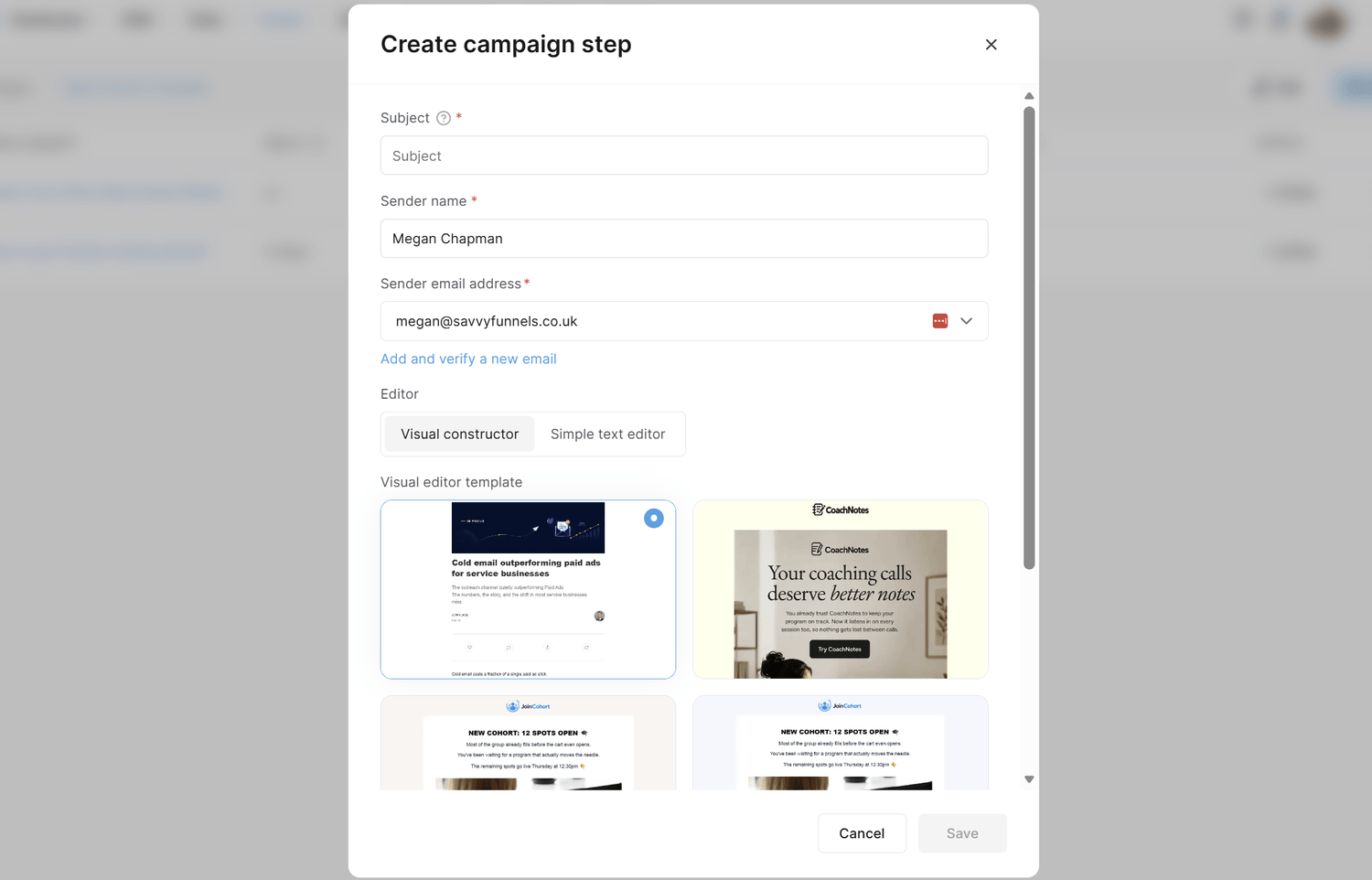
Open the campaign and create an email, you can chose a template to edit (visual constructor) or create a simple mainly text based email (simple text editor). I'd recommend the second option as deliverability is higher for emails that don't contain to many images, but you can still add them.
Enter a subject line and sender details subscribers will recognise (using something with your domain also increases deliverability).
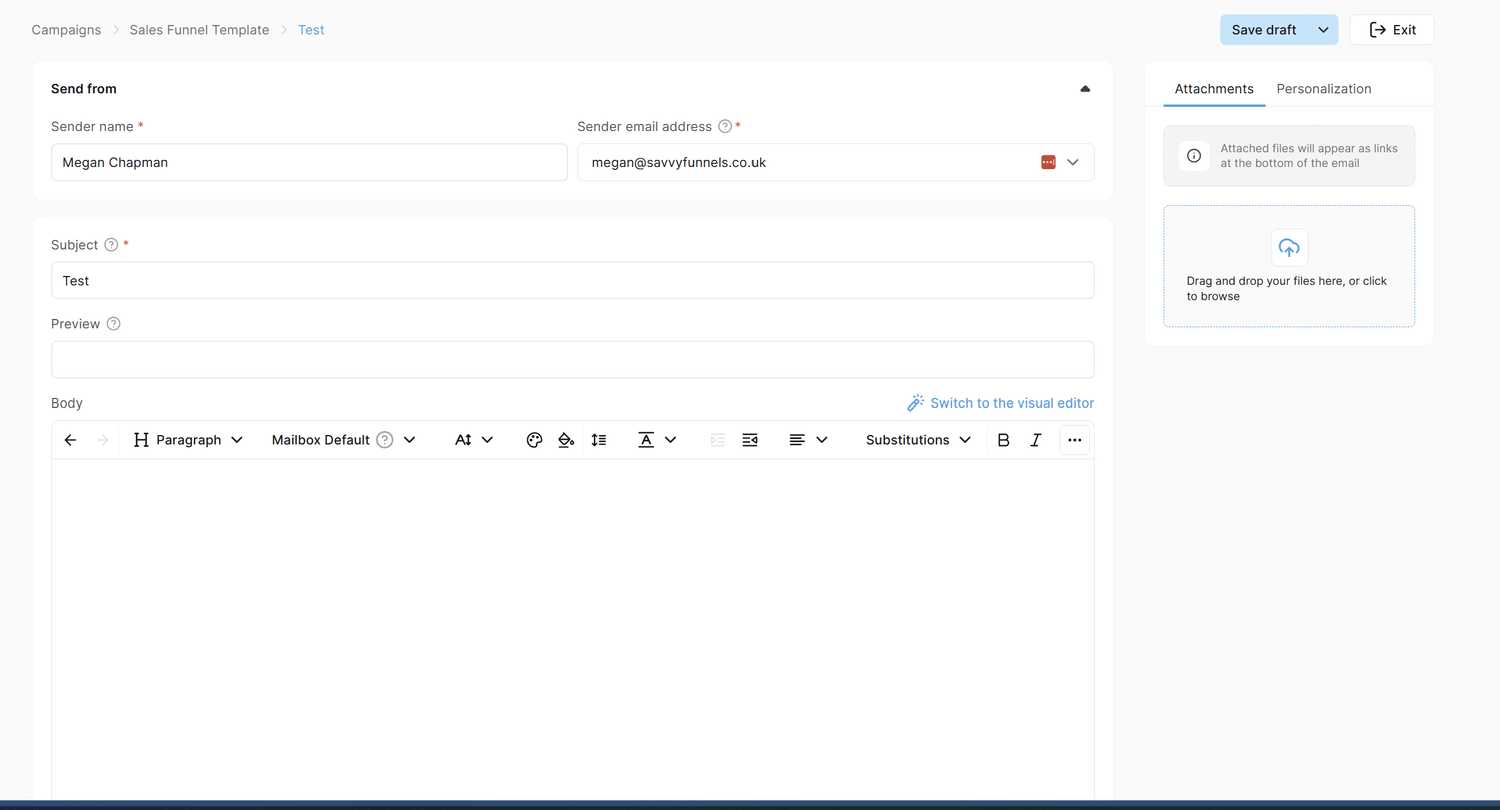
Write a short welcome, and explain what to expect next.
You can add files directly to the email by navigating to the right hand side of the screen and adding them.
Check the resource link, save the email and set the first message to send immediately or after a suitable short delay by selecting Save and Publish.
You can also test the email by sending it to yourself by selecting Save and Test.
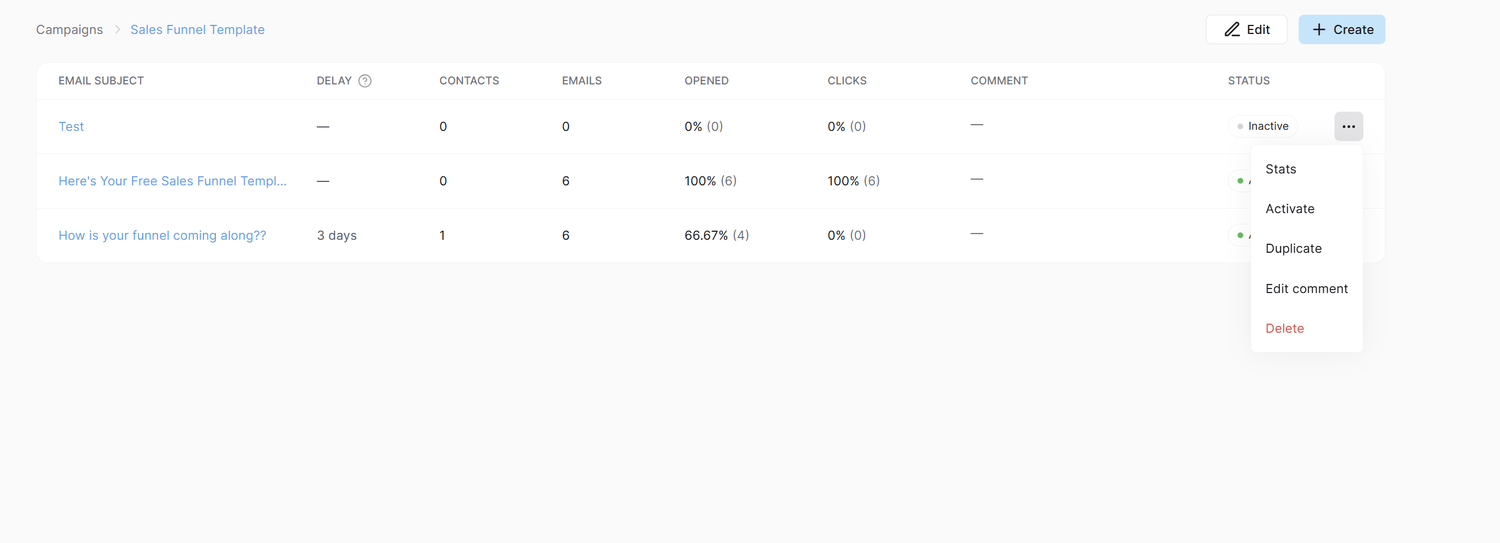
Finally make sure you activate the email, by clicking the three dots next to it as below and selecting activate.
4. Add useful follow-up emails
Add two or three more emails, each with a clear purpose. Email 2 might help someone use the resource; Email 3 could answer a common question and explain how you help; an optional Email 4 can suggest a natural next step.
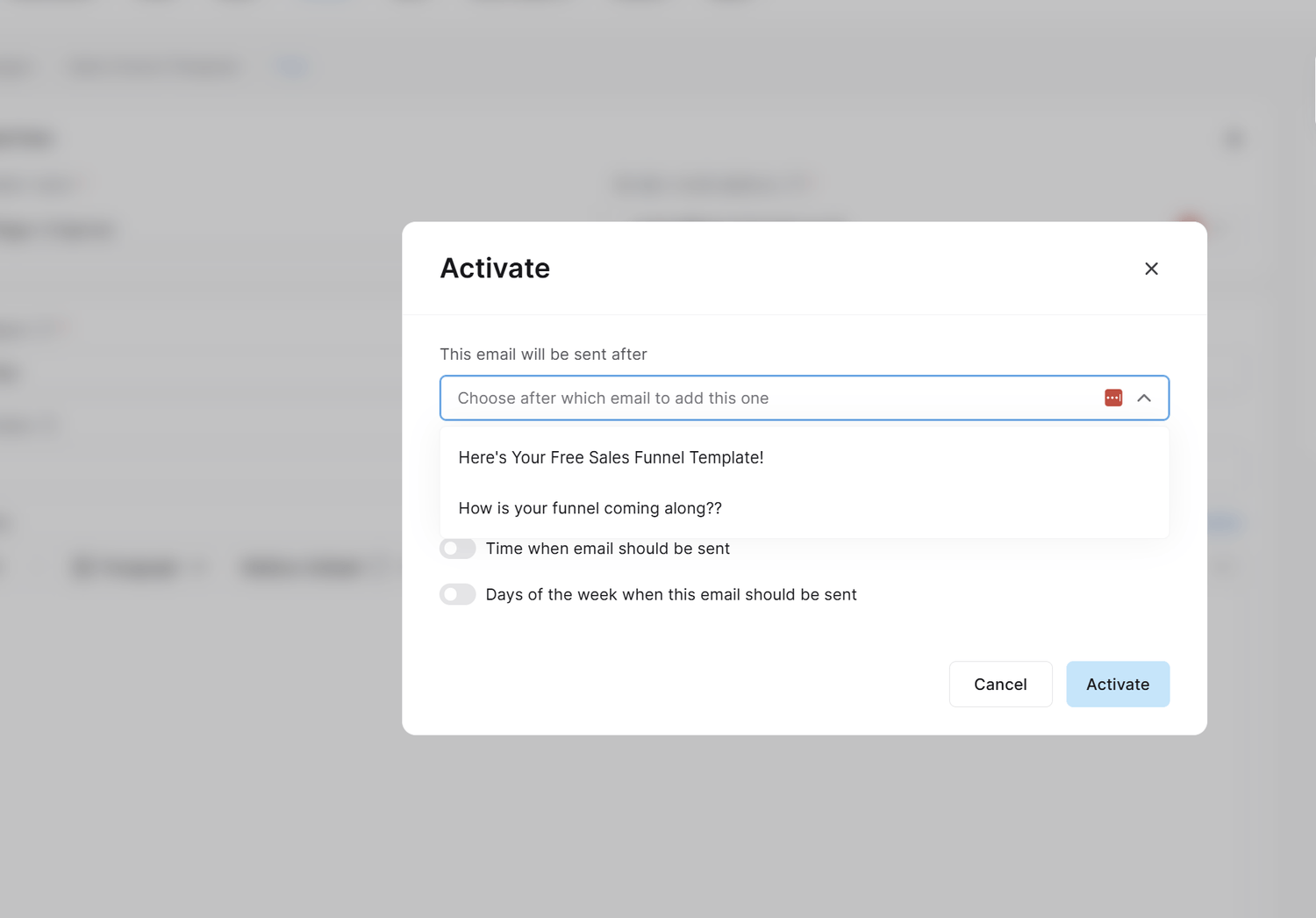
Make sure you select the delay for each email, you chose which email it should follow and how long afterwards. You can also specify specific days of the week it should go out (i.e. Monday to Friday) and a specific time if you so wish.
Give each email a useful subject line, check its links, save it and confirm it is active.
6. Connect the sign-up to your campaign
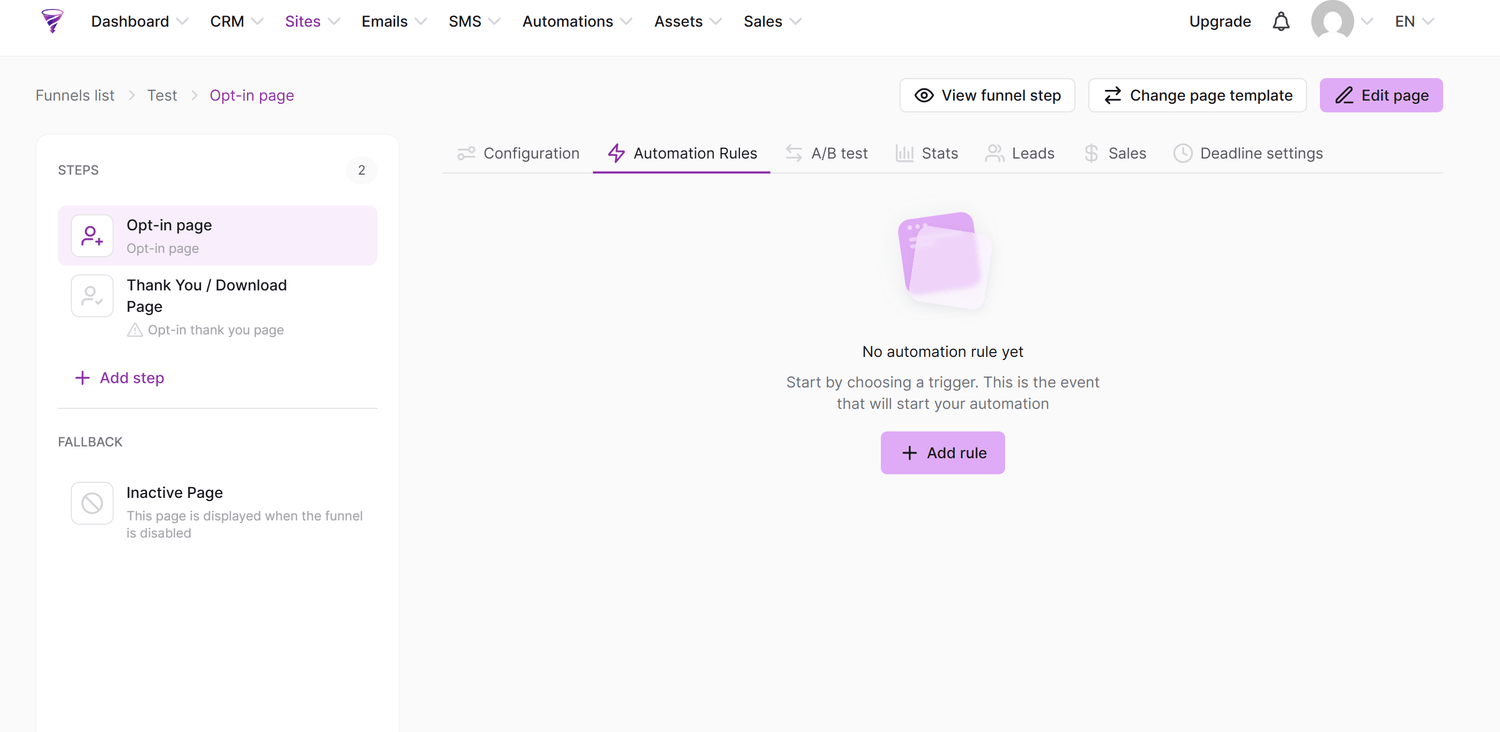
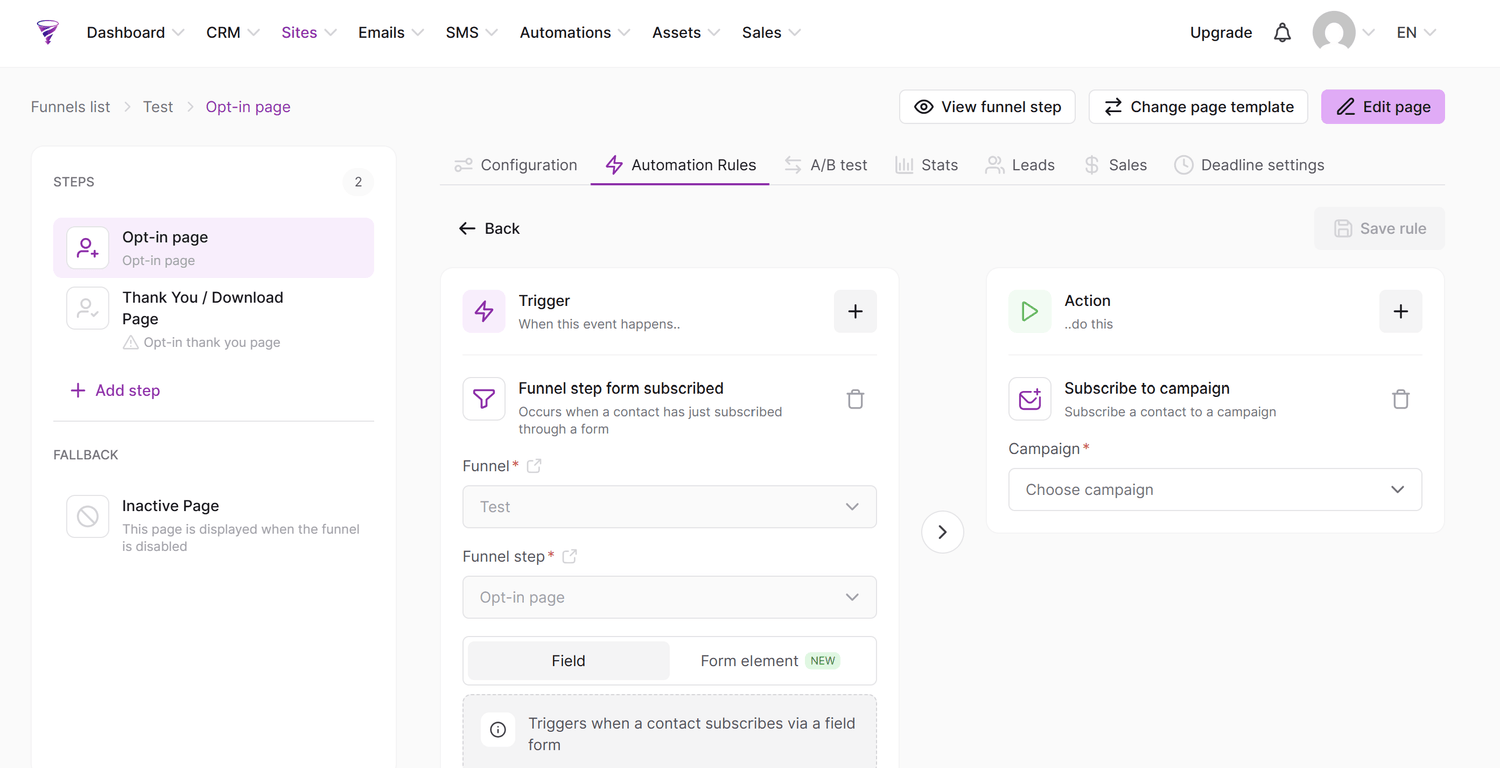
For a funnel sign-up, open Sites > Sales funnels, select the funnel and the relevant squeeze or sign-up page, then open Automation rules.
Add the trigger Funnel step form subscribed and the action Subscribe to campaign.
Select your welcome campaign and save.
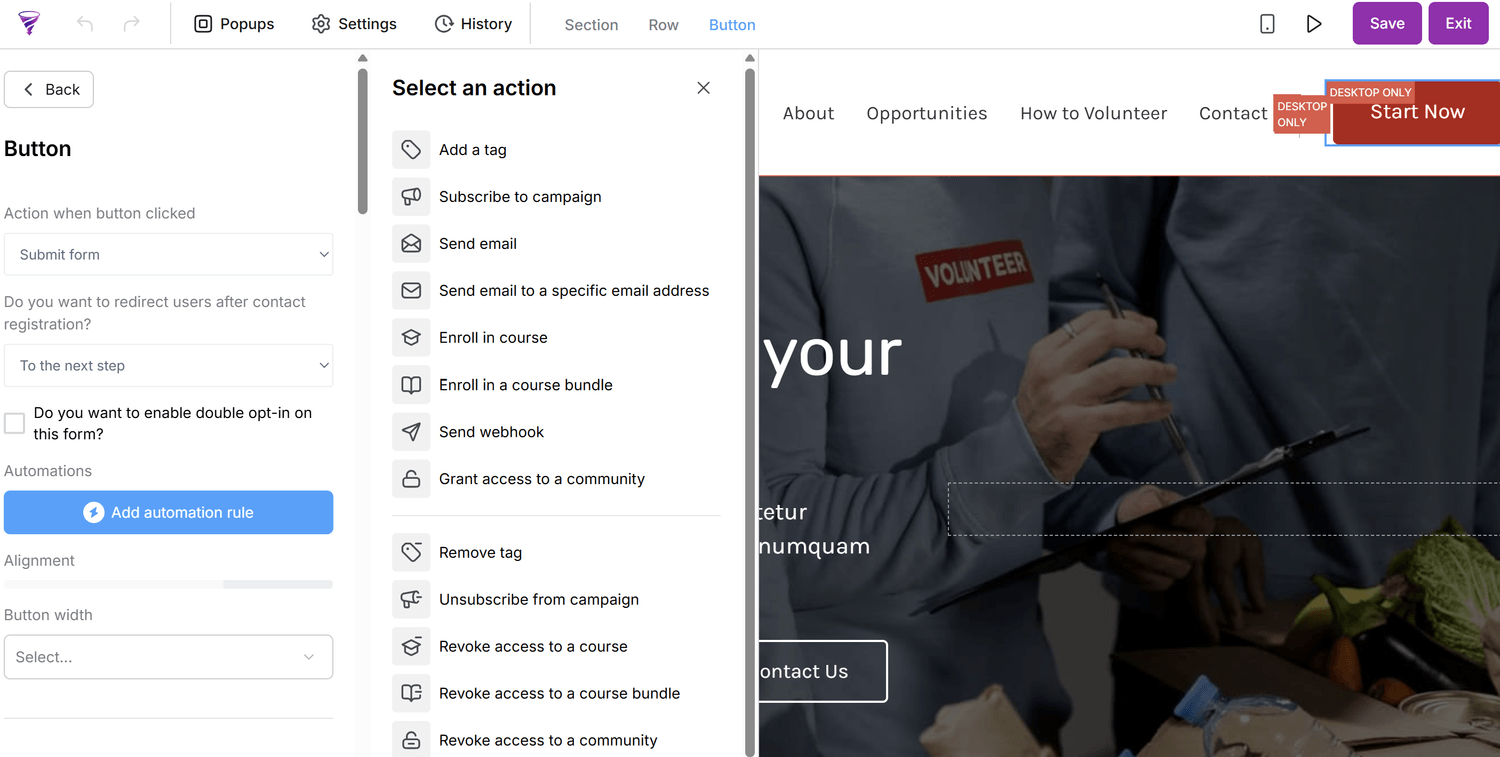
You can also add an Add a tag action. For other sign-up routes, use a trigger that matches the action. These are available natively within the builder when you create forms and buttons, you'll see an Automation Rules option. Without this connection, new contacts will not enter the campaign.
SAVVY TIP
You'll need to create your actions before assigning them via automation rules. You can always save what you have done, create what you need and then come back to assign it.
7. Test the complete sequence
Open the actual sign-up page as a visitor and submit the form using an email address you can access.
In CRM > Contacts, find the test contact and check that the correct campaign is assigned. Confirm the first email arrives, sender details and links work, and the email looks right on mobile.
Check later steps are active and their delays make sense.
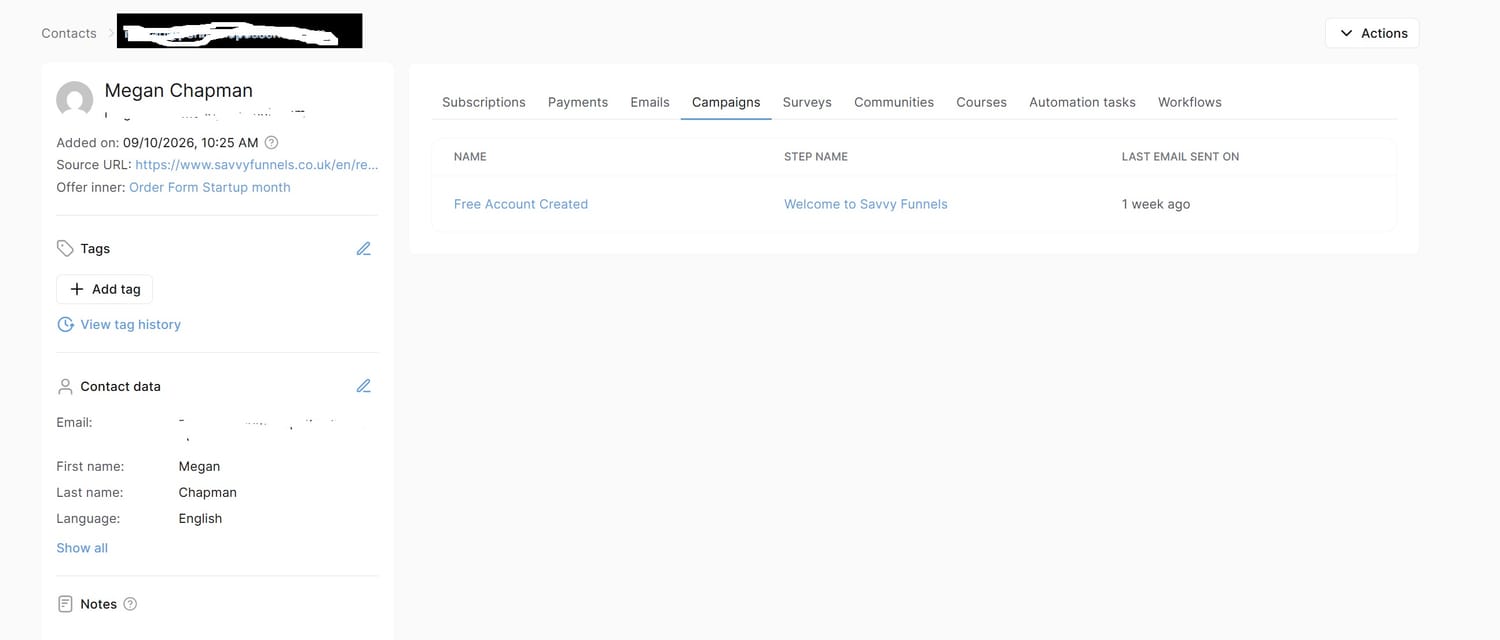
8. Review and improve your welcome journey
Once subscribers are receiving the sequence, review whether the emails still match what people signed up for. Check any replies, broken links or common questions. Adjust the wording or timing when useful, and test again after making important changes. Keep the sequence helpful and easy to follow.
Before you finish
Campaign has a clear purpose and the right emails
Sender details and resource links are correct
Follow-up emails are active and delays make sense
The correct sign-up action subscribes contacts
The full journey has been tested with a real email address
Emails display correctly on mobile