
Create and Deliver a Lead Magnet
Savvy Recipe | Beginner | Approximately 60–90 minutes
What you'll create
Have you got a free checklist, guide, workbook or other useful resource you'd like to share in exchange for someone's email address?
In this recipe, we'll show you how to set everything up in Savvy Funnels so people can request your resource and receive it automatically.
By the end, you'll have:
A sign-up page where visitors can request your resource.
A thank-you page confirming their request.
A tag to identify everyone who signed up.
An automated email delivering your resource.
A complete process that you've tested from beginning to end.
Here's how it works
Someone visits your sign-up page → Enters their email address → Sees your thank-you page → Is added to your contacts → Receives your resource by email.
Before You Start
You'll need:
Your free resource, such as a PDF, checklist or workbook.
A name for your resource.
A short explanation of who it's for and how it helps.
An email address you've already configured for sending emails through Savvy Funnels.
SAVVY NOTE
If you haven't set up your sending email yet, follow the Set Up Your Sending Email guide in Start Here before continuing.
1. Create your lead magnet funnel
First, we're going to create the two pages that people will visit when requesting your resource.
Log in to your Savvy Funnels account.
Open Sites > Sales funnels from the main menu.
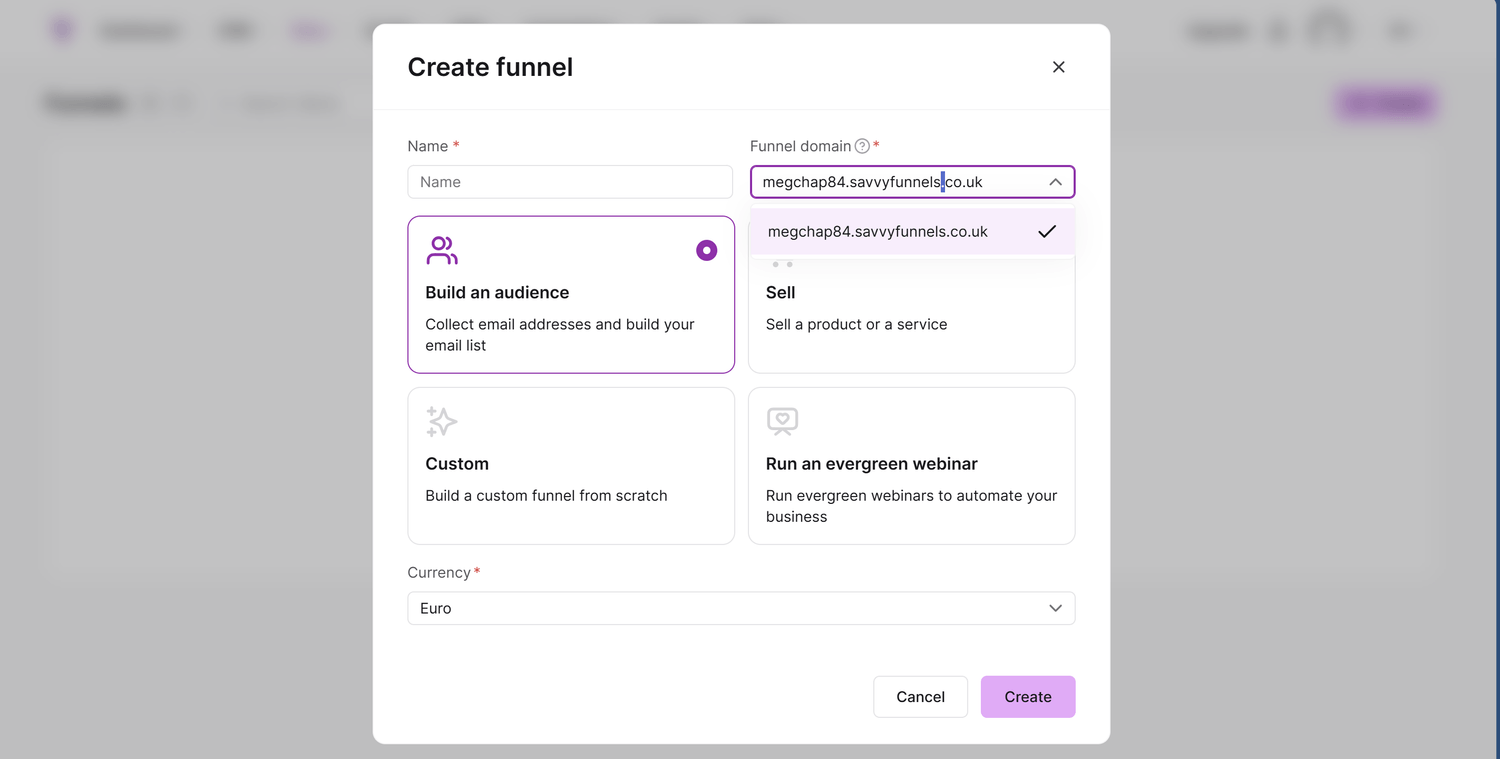
Click Create.
Give your funnel a name you'll recognise, such as Free Guide | Simple Systems Checklist.
Choose Build an audience as the funnel goal.
Select your currency if requested. You won't be taking payments in this funnel.
Click Save.
Savvy Funnels will create a funnel containing two steps:
Squeeze page, where visitors enter their details.
Opt-in thank-you page, which appears after they've signed up.
A squeeze page is simply another name for a sign-up page.
You can rename the steps to something more meaningful if you prefer.
Before moving on: Check that you can see both steps listed inside your funnel.
2. Design your sign-up page
Now we'll turn the first page into somewhere people can request your resource.
Choose your page template
Inside your funnel, select the Squeeze page step.
Browse the available page templates.
Choose a design that suits your business and click Select.
Click Edit page to open the page builder.
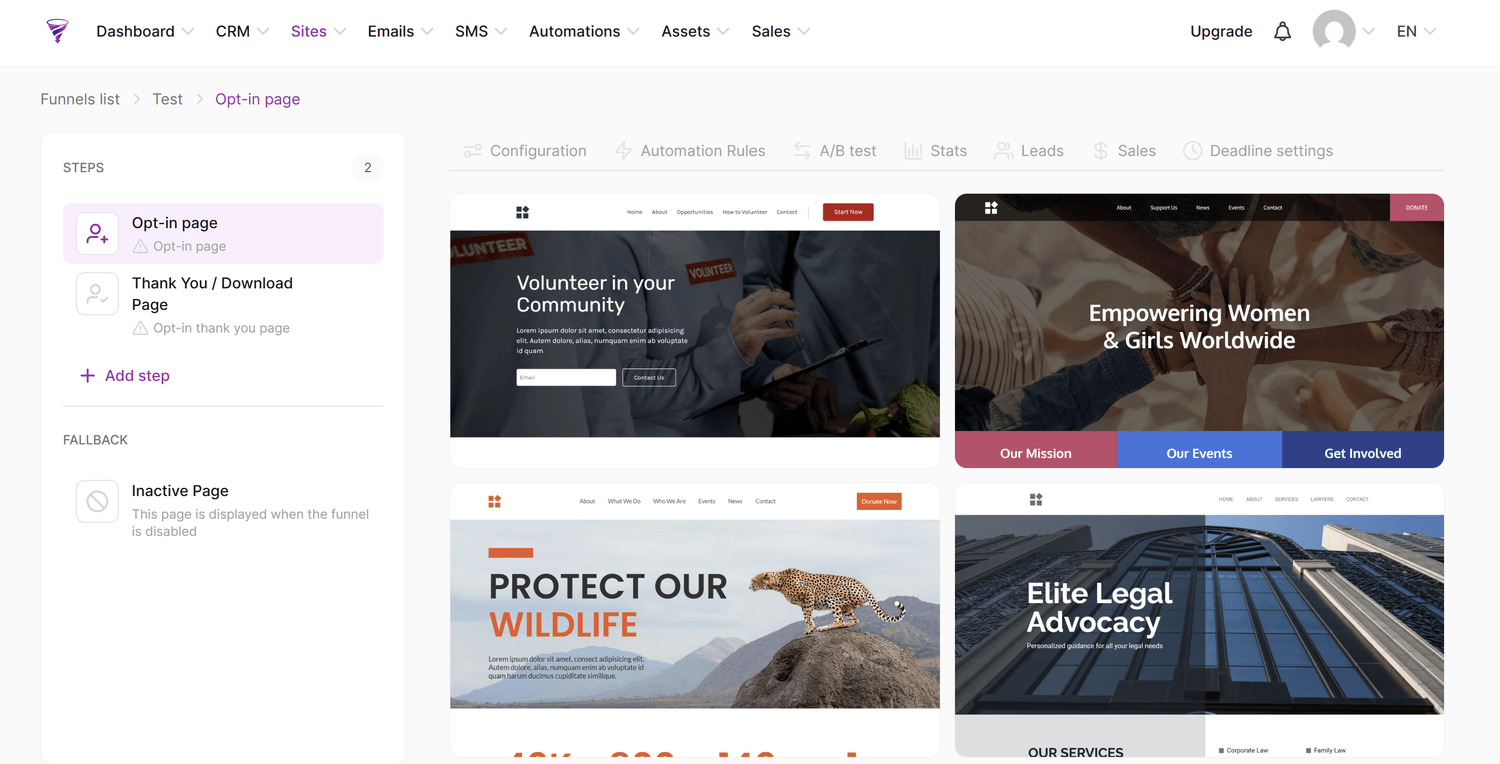
Don't worry if the template contains text, images or sections you don't need. We'll change those next.
Edit the text
In the page builder:
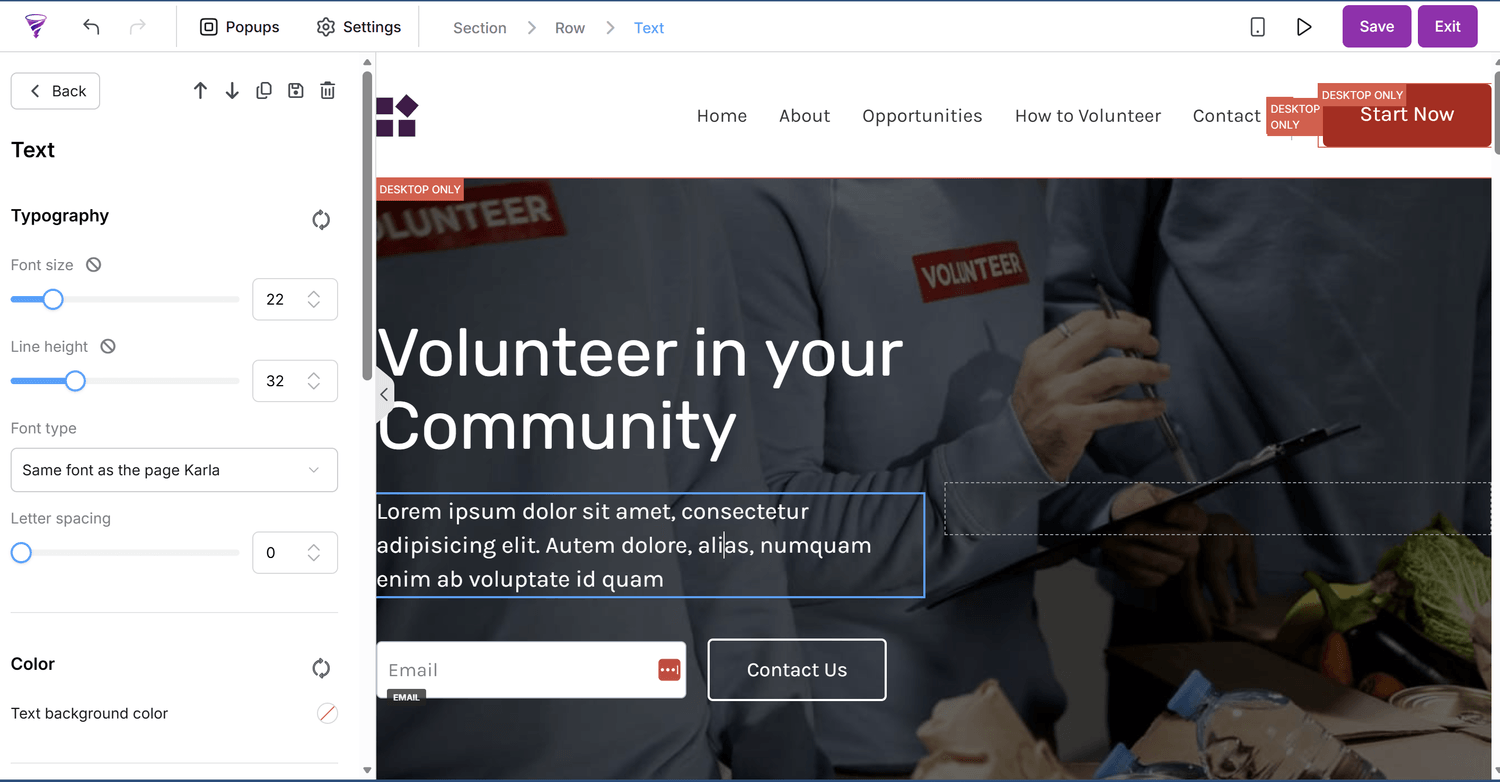
Click the text you want to change.
Replace the example wording with your own.
Use the text settings to adjust the font, size, colour and alignment.
Repeat for the other text sections.
Your sign-up page should clearly explain:
What the free resource is.
Who it's for.
How it will help.
What someone needs to do to receive it.
For example:
Free Checklist: 10 Simple Ways to Organise Your Online Business
Feeling overwhelmed by all the little jobs involved in running your business? Download this free checklist to help you get things organised.
Change your images
Click an existing image in the editor.
Open its image settings.
Upload or select the image you'd like to use.
Adjust its size and positioning if necessary.
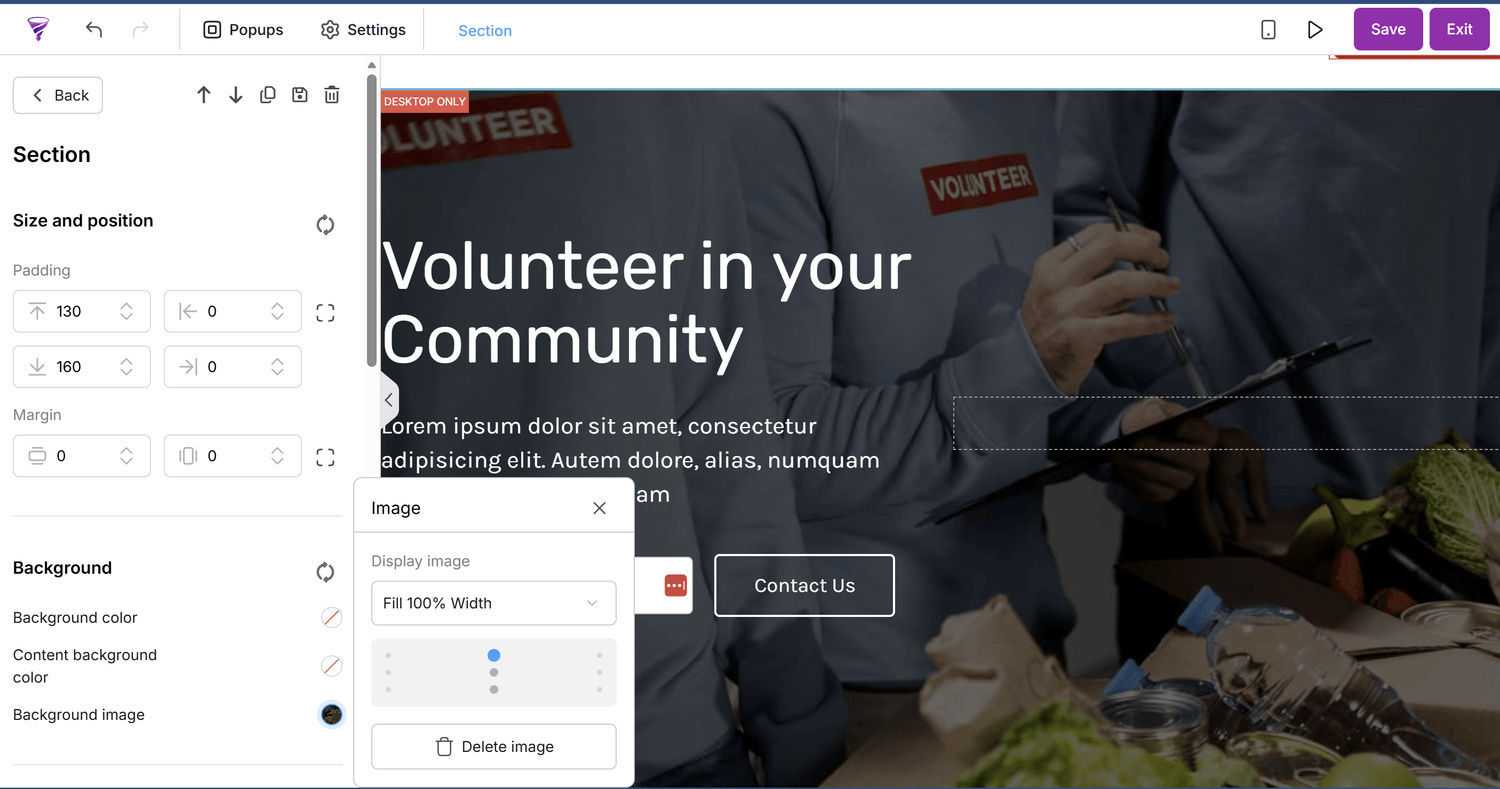
You can also change background images but selecting the section, navigating to background image and selecting delete. You will the be able to upload your own, or select a background colour instead.
Change your colours and fonts
Click the elements you want to customise and use their settings to adjust the colours, typography and spacing.
Check your headings, body text, buttons and backgrounds so the page feels consistent with the rest of your business.
Depending on your chosen template, you may also have page-wide typography and colour settings.
Add or remove sections
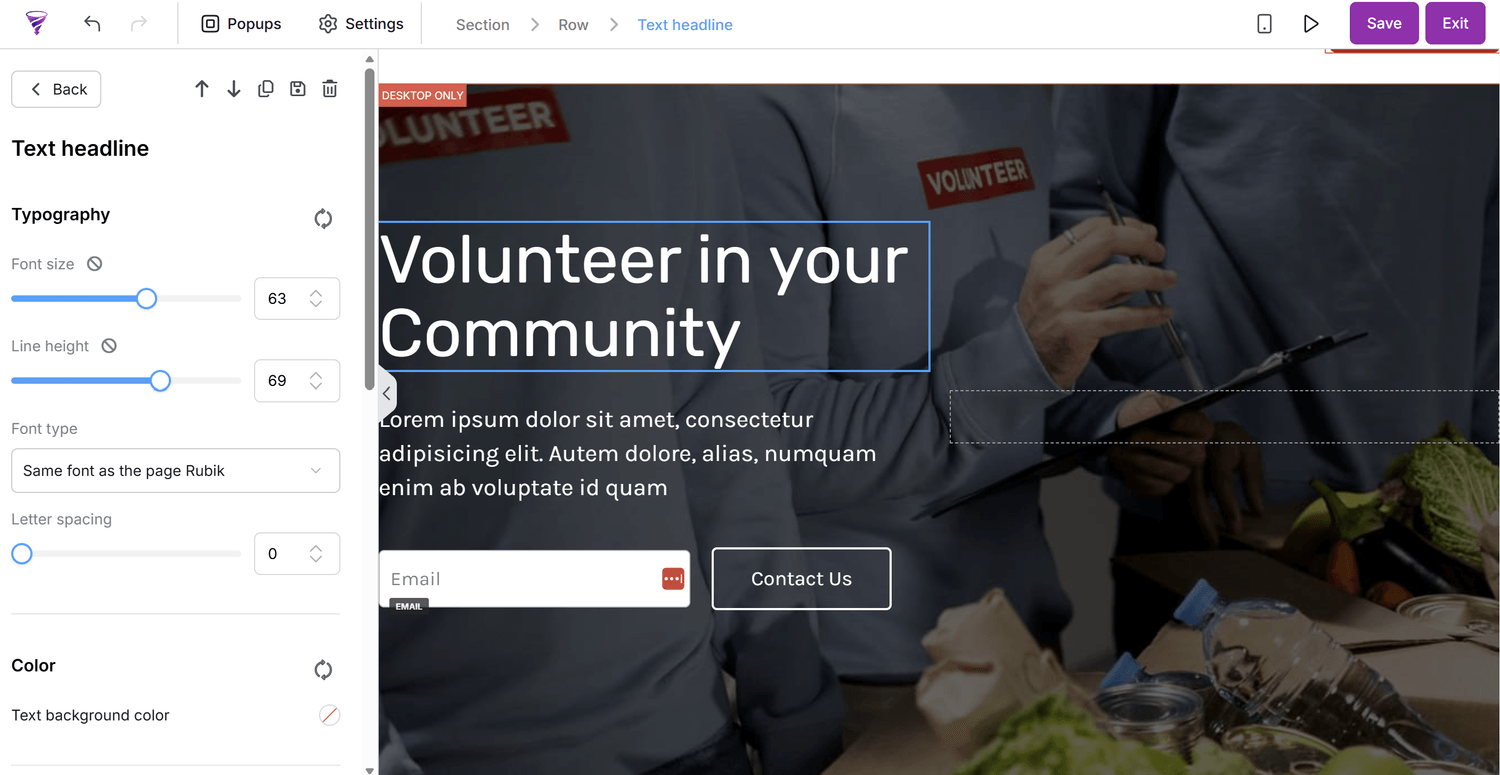
The page builder uses sections, rows and elements.
Sections divide your page into different areas.
Rows organise content within a section.
Elements are individual items such as text, images, buttons and forms.
Use the editor's elements panel to drag additional content onto your page. You can also select unwanted sections or elements and remove them.
You don't need a complicated page. A clear heading, short explanation, relevant image and sign-up form are usually enough.
Save your changes before continuing.
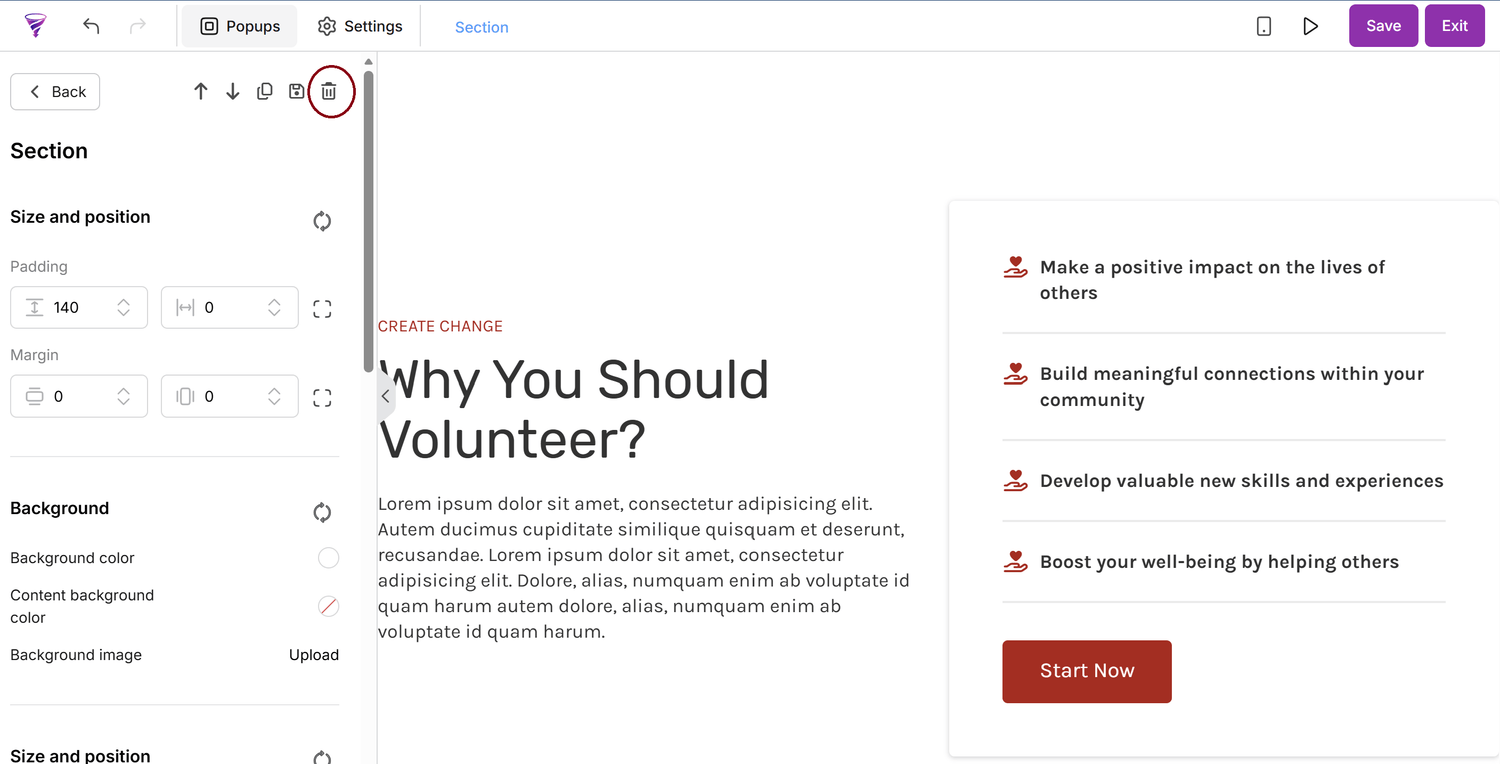
You can also change the font and colours throughout by navigating to Settings at the top of the page and selecting your fonts and colours. Here you will also find your SEO settings.
3. Set up your sign-up form
Your template should contain a form where visitors can enter their details.
We're going to make sure it collects the information you actually need.
Check the email field
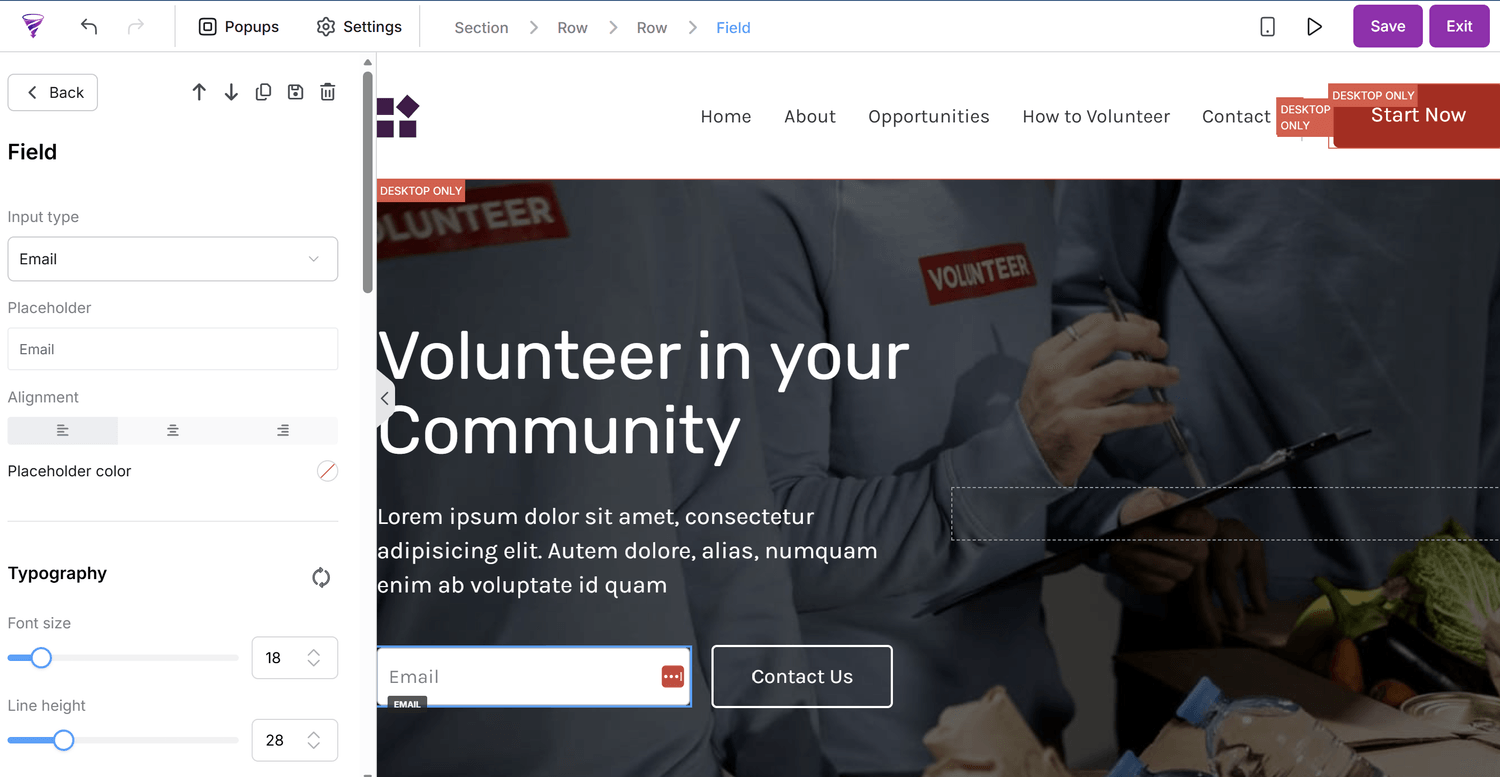
While still in the page editor, click the email input field.
Open its settings.
Check that the field is linked to the Email contact field.
This ensures the email address someone enters is saved against their contact record.
Add a first-name field (optional)
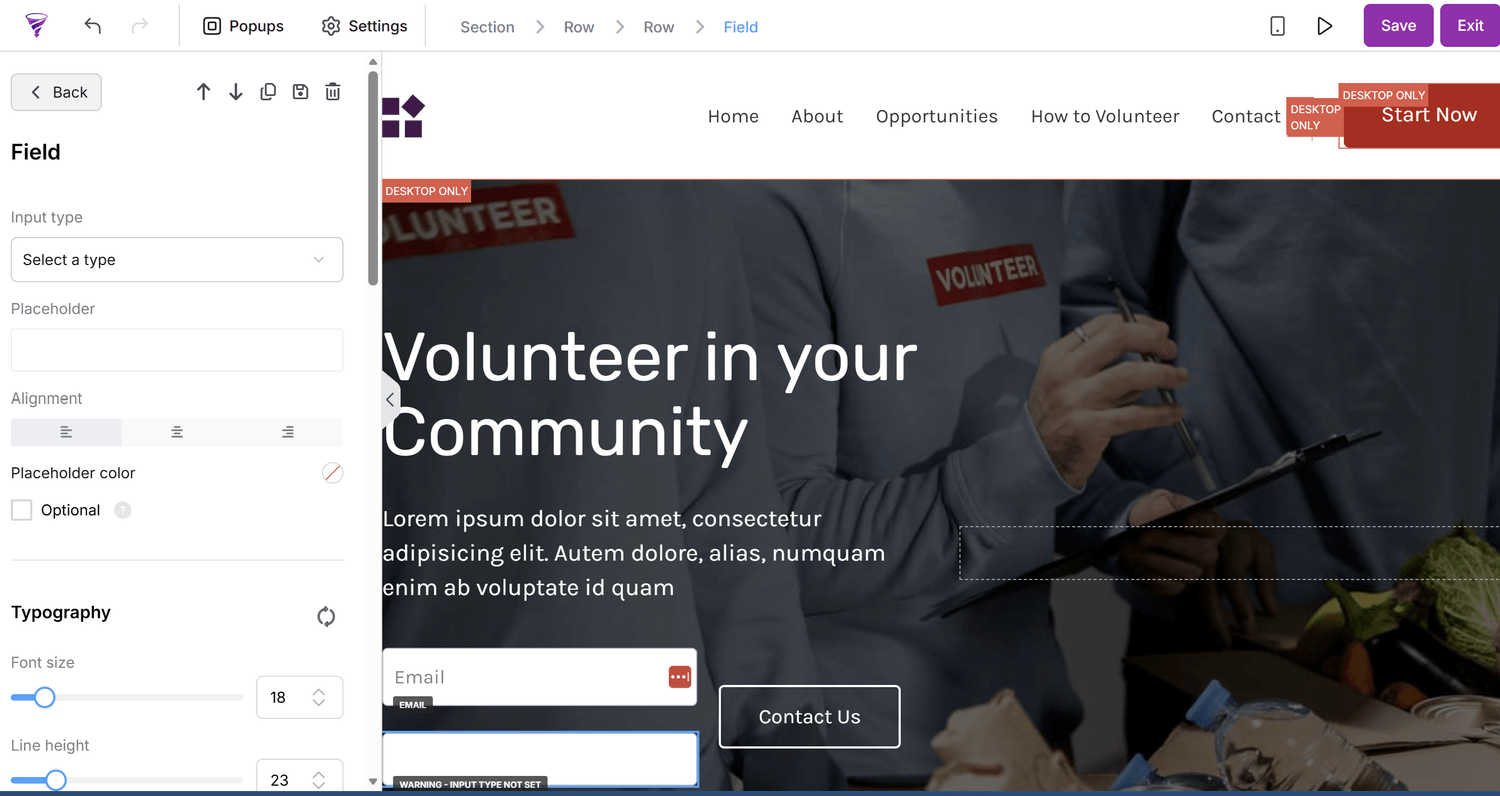
If you'd like to personalise future emails, you can also ask for someone's first name.
Add another Form input element if the template doesn't already have one.
Open its settings.
Select the appropriate first-name contact field.
For most lead magnets, a first name and email address are plenty. You don't need to ask for someone's phone number, address or other information unless there's a genuine reason.
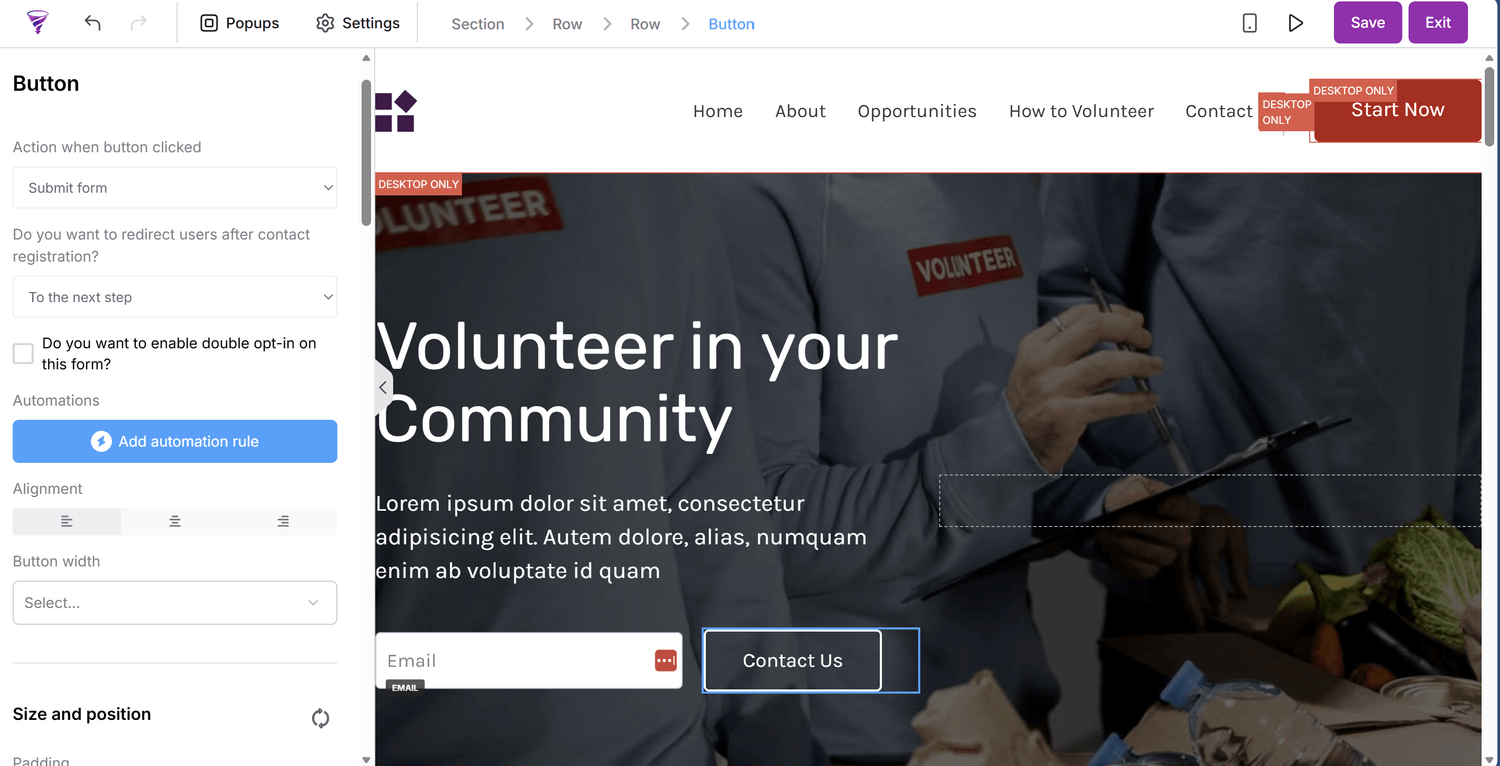
Configure the sign-up button
This part is important because the button needs to submit the form, not simply open another page.
Click the button beneath your form.
Open its settings.
Change the button text to something relevant, such as Send Me the Checklist.
Set the button action to Submit form.
Set the destination or redirect to To the next step.
This means that when someone completes the form and clicks the button, Savvy Funnels can save their details and take them to your thank-you page.
Save your page.
Before moving on: Make sure your form has an email field and the button is configured to submit the form.
4. Create a tag for your lead magnet
A tag is a label you can attach to contacts to help organise your audience.
For example, you might want to know which people downloaded your checklist, registered for a webinar or joined your newsletter.
We'll create a tag specifically for this lead magnet.
Return to your Savvy Funnels dashboard.
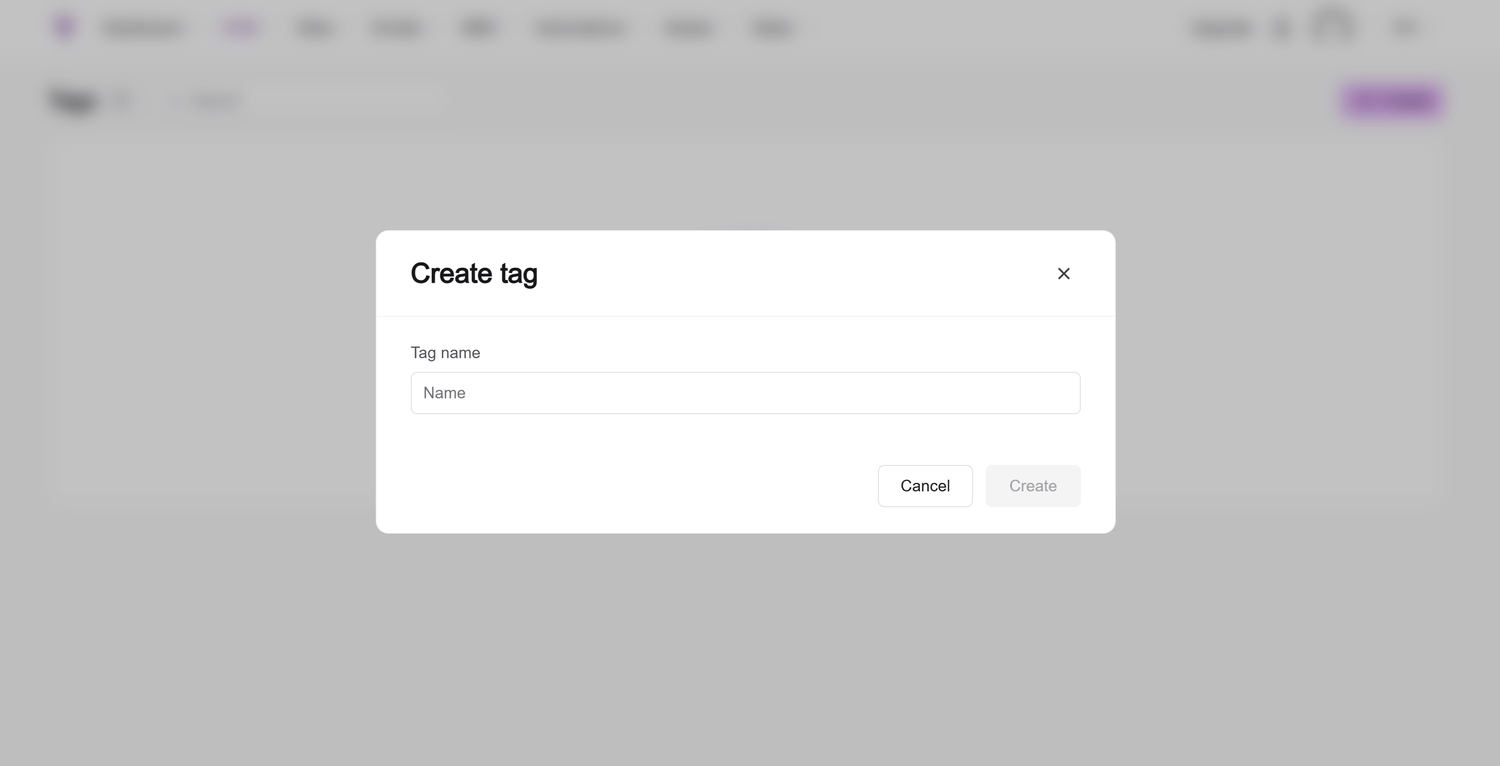
Open CRM > Tags.
Click Create.
Give your tag a recognisable name, such as LM | Simple Systems Checklist.
Save your new tag.
That's all you need to do for now.
Important: Creating the tag doesn't automatically connect it to your funnel. We'll do that in Step 7, when we create the automation.
5. Create your thank-you page
Your thank-you page lets visitors know their request was successful.
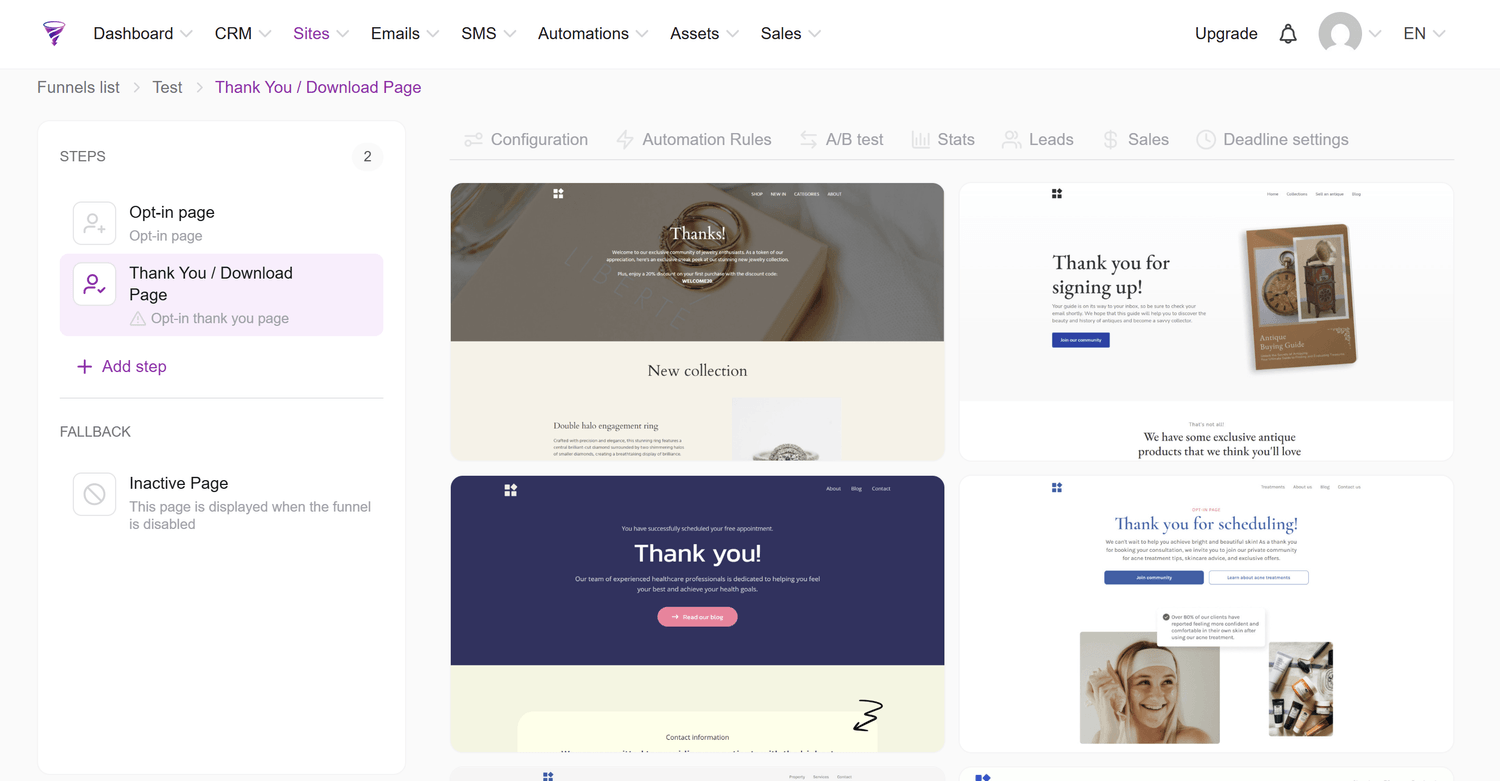
Go back to Sites > Sales funnels.
Open your lead magnet funnel.
Select the Opt-in thank-you page step.
Choose a template if you haven't already selected one.
Click Edit page.
Replace the example content with a short confirmation.
For example:
Your checklist is on its way!
Thank you for requesting your free checklist. Keep an eye on your inbox, and don't forget to check your junk folder if you can't see it.
You can also include a short introduction to your business or suggest a relevant next step.
Save your changes.
6. Prepare your delivery email
Now we need to make sure people actually receive the resource they've requested.
For a simple lead magnet, we can send one email automatically when someone signs up.
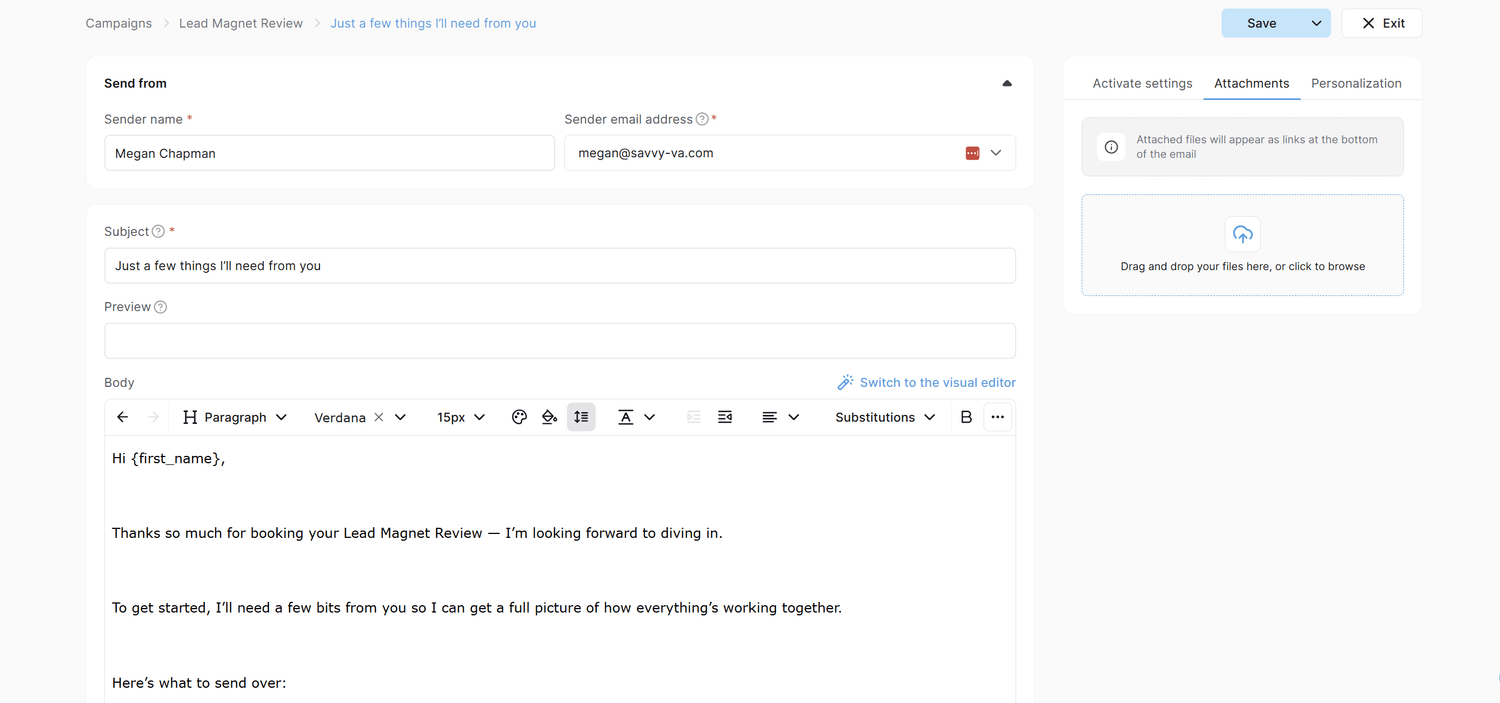
Before creating the automation, prepare a campaign with just one email (or more and you can select the time delay between emails).
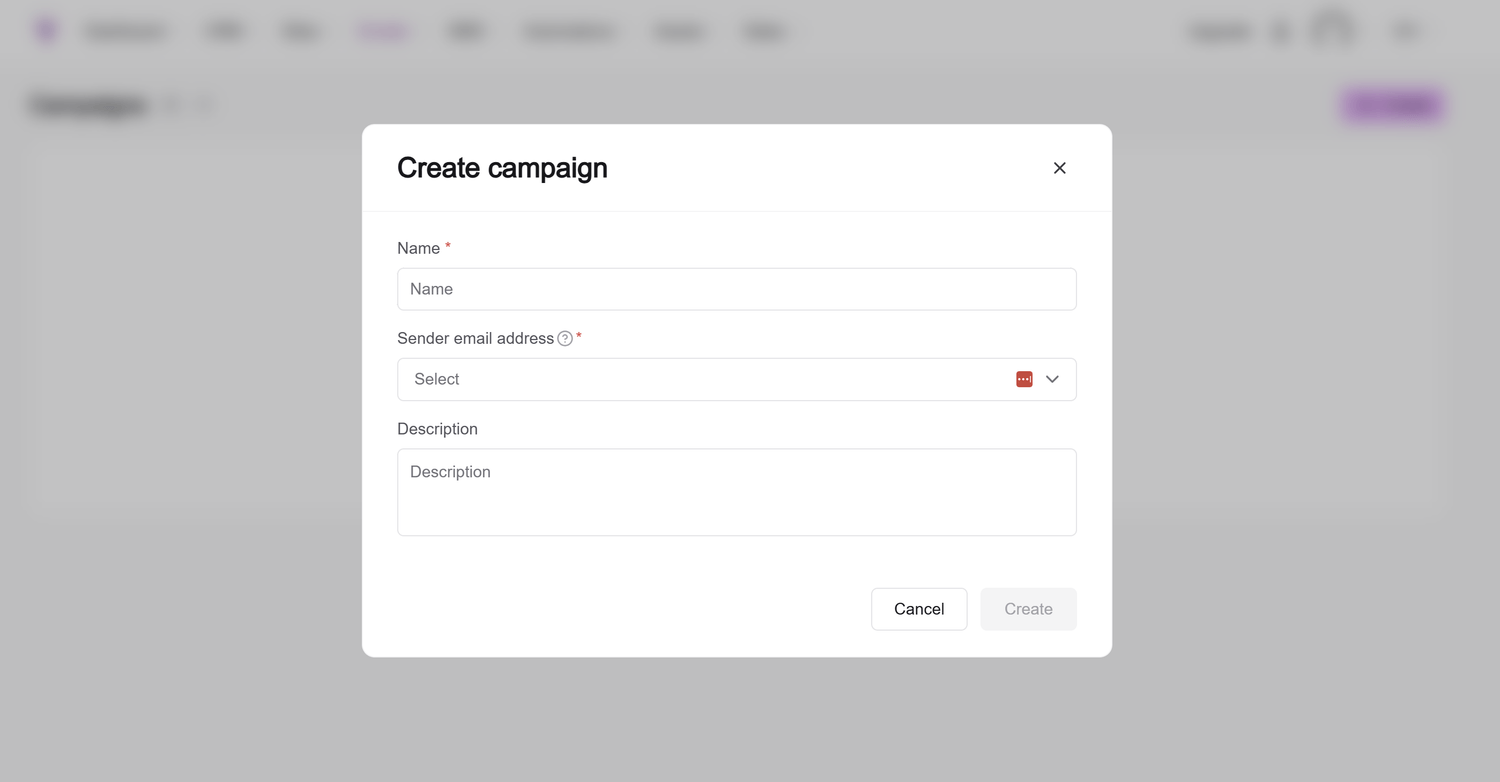
Navigate to Emails and the Campaigns and select Create.
Give your email a subject line and select your send email address.
Note you must have configured your email address here first.
Select Create.
Your email should contain
Your subject line
For example: Here's your free Simple Systems Checklist
Your email message
Keep it friendly and straightforward. Thank them for requesting the resource, tell them how to access it and briefly remind them who you are.
Your resource
Decide how you'll deliver it. You can provide a link to a downloadable file or use a file attachment.
Make sure your resource is accessible to the people receiving the email. A link to a private file they don't have permission to open won't work.
Ensure you click Save.
If you want to add additional emails, you can create them here and select the time delay between each email.
7. Connect everything with an automation
This is where we tell Savvy Funnels what to do when someone signs up.
We want two things to happen automatically:
Add our lead magnet tag to the new contact.
Send the email containing our free resource.
Part A. Create the automation trigger
Go to Sites > Sales funnels.
Open your lead magnet funnel.
Select the Squeeze page step.
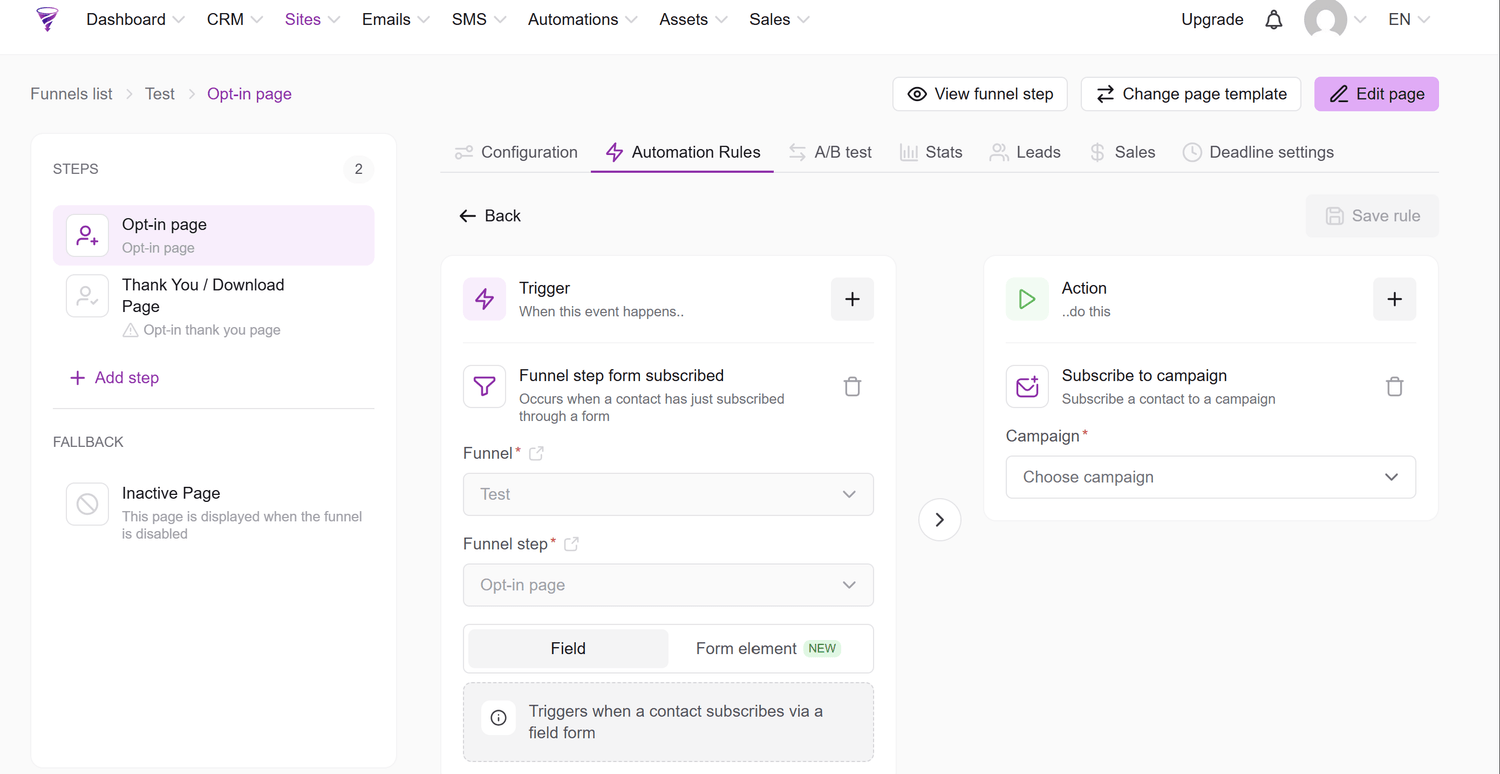
Open the Automation rules tab.
Click Add rule.
Add the trigger Funnel step form subscribed then under Action select Subscribe to Campaign and select the campaign you have created. Add another action by pressing the + symbol to add the tag you also created.
This trigger means the automation will run when someone successfully submits the form on this particular funnel step.
Step 8. Test the complete journey
Before you share your lead magnet with anyone, it's important to check everything works.
Test your sign-up page
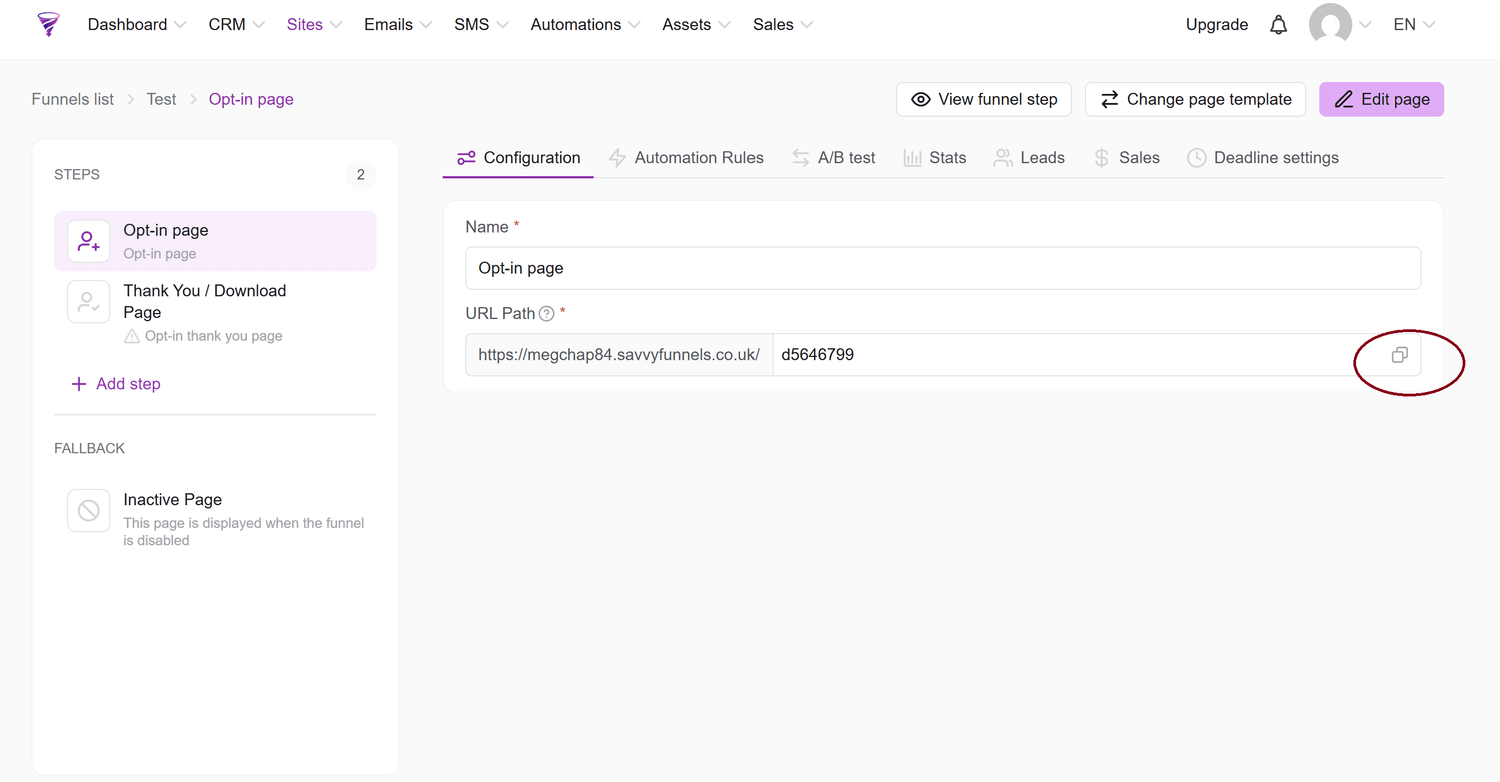
Open your funnel's public sign-up page URL.
Enter an email address you can access.
Complete the form and click the sign-up button.
Check that you're taken to the correct thank-you page.
Check your contact record
Return to your Savvy Funnels dashboard.
Open CRM > Contacts.
Find the email address you used for testing.
Open the contact record.
Check that your lead magnet tag has been applied.
Check your delivery email
Open the inbox for your test email address.
Check that:
The email has arrived.
The subject line and sender details are correct.
The resource link or attachment works.
The email looks sensible on mobile.
Any additional links work.
If the email doesn't arrive, check your spam or junk folder first. Then return to your funnel's automation rule and confirm the trigger and actions have been saved correctly.
Testing tip: If you've already used the same email address to test the funnel, use a different address or a fresh test contact when checking the full sign-up process again.
Step 9. Publish and share your lead magnet
Once you're happy that everything works, you're ready to share your free resource.
Return to Sites > Sales funnels.
Open your lead magnet funnel.
Select the sign-up page.
Copy its public URL.
Open the link in a new browser tab to make sure it loads correctly.
You can now share the link on your website, social media, in emails or anywhere your audience is likely to find it.
Remember to share the sign-up page link, rather than linking directly to the resource, if you want people to register before receiving it.
Before you finish
My lead magnet funnel has a sign-up page and thank-you page.
I've customised the page with my own text, images, fonts and colours.
My sign-up form collects the correct information.
My sign-up button submits the form.
I've created a tag for this lead magnet.
My automation adds them to the campaign.
My resource can be opened or downloaded.
I've tested the complete journey.
My public sign-up page is ready to share.